Introduction
Hello XR developers! 🚀 Today, we’re embarking on an exciting journey to install and set up Unity’s versatile cross-platform mixed reality template. This template is a game-changer for developers working with Meta Quest, HoloLens 2, and Magic Leap 2. It includes features like plane detection, passthrough, simple interactables, spatial UI, and hand and controller presence. If you’re into this kind of content, consider supporting my work on Patreon or subscribing to the channel. Join our XR Developer Discord community for any questions. Let’s dive in!
Check out this blog post or the setup guide from Unity!
Getting Started with Unity’s Mixed Reality Template
- Prerequisites: Ensure you have a Meta Quest device and Unity version 2022.3.11 or later. Download the latest Unity version and include the Android modules for later app testing.
- Setting Up the Template: There are two ways to set up the mixed reality template:
- New Project: Create a new project and download the mixed reality sample. This comes pre-configured with various prefabs and custom scripts.
- Existing Project: Upgrade your project to Unity 2022.3.11 or later, then add the package “com.Unity.XR.Meta-OpenXR” via the package manager. Note that this method requires manual setup for XR Plugin Management and XR Hands.
- Exploring the Template: The template is fully configured with OpenXR, AR-Foundation, XR Hands, and the XR Interaction Toolkit. Check the project settings and XR Plug-in Management to see the configuration.
Configuring and Testing the App
- Graphics and Rendering Settings: Unity recommends specific settings for Meta Quest 2 (“performant”) and Meta Quest 3 and Pro (“balanced”). Adjust these in the “Quality” and “Graphics” tabs in your project settings.
- Building for Android: Switch to the Android platform to build an APK and test the Mixed Reality app on your device.
- Space Setup: Before testing, set up your physical space using your headset’s settings. Accurate room scanning ensures a better experience with AR-Foundation’s plane detection.
Exploring the Sample App
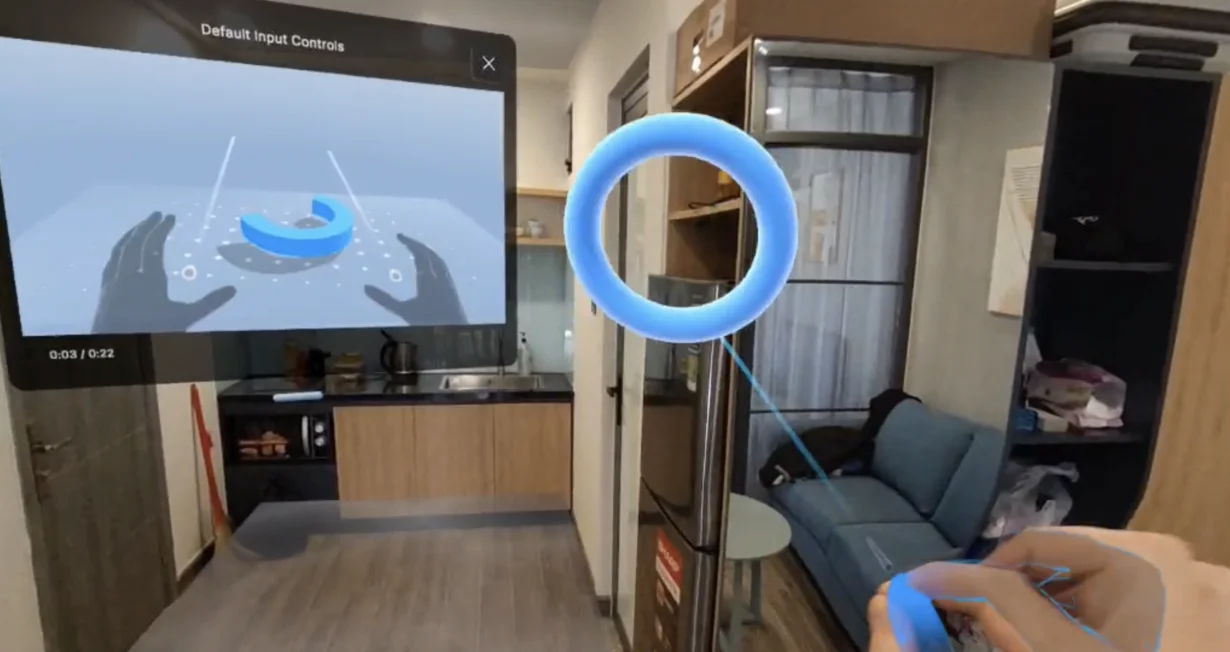
- Interactive Features: The sample app includes a wrist-menu for AR mode and scene configuration, plane detection for object placement, and a variety of UI settings.
- Unity’s Video Player Prefab: Experience the intuitive video player with ray-cast snapping and interactive play/pause buttons.
- Sample Scene Analysis:
- Environment and Lighting: A simple setup to start with.
- MR Interaction Setup: Includes the main components for mixed reality interactions.
- UI GameObject: Contains the coaching UI for initial tutorials.
- Hand-Menu Setup: Tracks hands and detects palm orientation.
- Spatial Panel Manipulator: Showcases the new video player with XR Grab Interactable and affordance providers.
- Affordance System: A new feature by Unity that enhances interactables with audio and visual feedback.
- Object Spawning: Utilizes a custom “Object Spawner” and a “Palm” game-object with a “Contact Spawn Trigger” for spawning objects by touching a plane.
Conclusion
Unity’s cross-platform mixed reality template opens up a world of possibilities for XR development across devices like Meta Quest, HoloLens 2, and Magic Leap 2. With its comprehensive features and easy setup, it’s an invaluable tool for developers looking to create immersive mixed reality experiences. Dive into this template, experiment with its features, and share your thoughts and creations with our community. Happy developing!
Support Black Whale🐋
If you find our content helpful, consider supporting us on Patreon. Your contributions enable us to continue creating free, high-quality educational material 👍.
Thank you for following this tutorial. Stay tuned for more in-depth and insightful content in the realm of XR development! 🌐
Did this article help you out? Consider supporting me on Patreon or simply subscribe to my YouTube channel!